
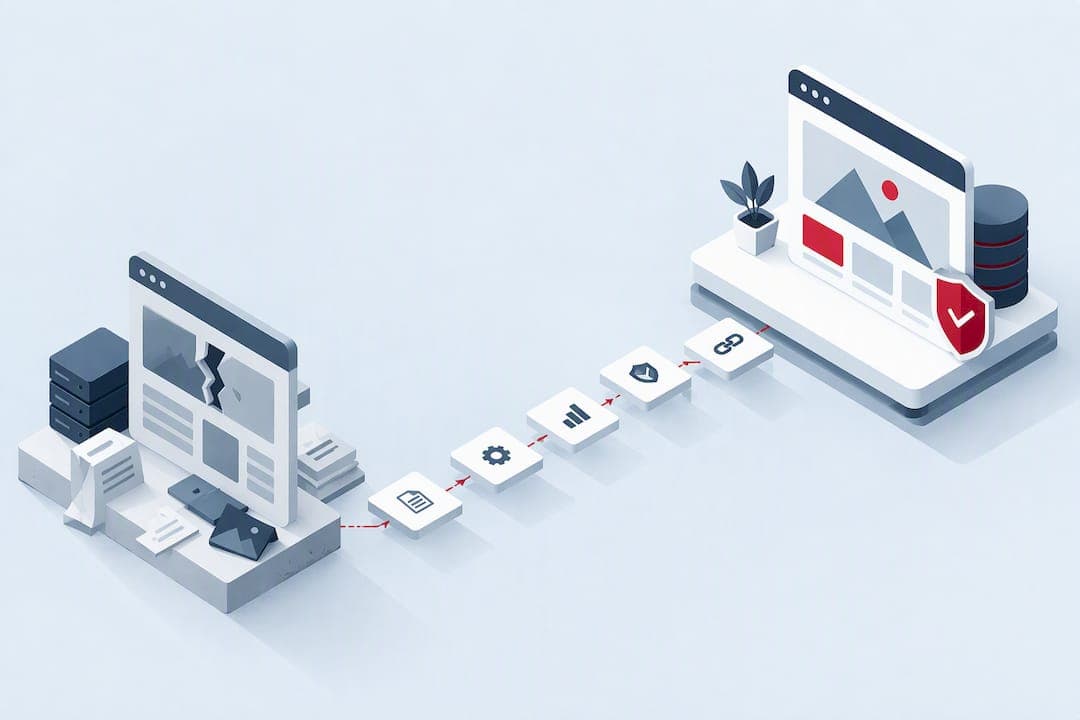
Yes, you can migrate your existing site to WordPress. WordPress accepts content from many platforms, though the exact process depends on where you're starting: moving from one WordPress site to another is the simplest path, while other platforms need exports or dedicated importers. Before touching anything, back up your original site and create a staging copy.
TL;DR:
- Migration complexity increases with site size and platform differences, especially for large e-commerce stores or custom-built sites needing detailed redirect and media handling.
- Proper URL structure matching and comprehensive 301 redirects are critical to preserving search rankings and avoiding traffic loss during the move.
- External-hosted images and media often fail to transfer correctly, making media import plugins and direct file transfers essential for maintaining page layouts.
- Using staging environments and thorough testing before going live help catch issues with links, forms, mobile responsiveness, and SEO tracking, reducing post-launch errors.
- Professional migration services are recommended for sites with large media libraries, complex functionality, or custom content, as they mitigate troubleshooting and minimize downtime.
Table of Contents
- Quick migration checklist
- Choose hosting and install WordPress
- Take inventory and decide the migration path
- Exporting content from common platforms
- Importing into WordPress: native importer and plugin options
- Transfer and fix images, media and attachments
- Permalinks, redirects and how to protect SEO
- Staging, testing and backups (pre-launch QA checklist)
- Go live and post-migration tasks
- WebPro Studio: what we do and when to hire a pro
- What actually matters when you move to WordPress
- How WebPro Studio can help with your migration
- FAQ
- Sources
Quick migration checklist
Use this as your map before you start moving anything.
- Choose hosting and install WordPress on a staging URL.
- Take full inventory of your current site: pages, media, plugins, users.
- Export content (native WordPress export or a platform-specific tool).
- Import into WordPress using the right tool for your source platform.
- Fix images and media links that didn't transfer cleanly.
- Match permalinks and set up 301 redirects.
- Test everything on staging and take a fresh backup.
- Go live, switch DNS and monitor for issues.
If your current site already runs on WordPress, steps 3 and 4 collapse into a single plugin-driven process. Moving from Wix, Shopify or a custom CMS adds manual work, particularly around large media libraries and redirects.
Choose hosting and install WordPress
Your hosting choice shapes how smooth the rest of this gets. Managed WordPress hosting or any host with reliable automated backups removes a lot of the risk, since you can roll back instantly if an import goes wrong.
Before committing, check:
- PHP version: WordPress needs a current PHP version; outdated versions cause plugin compatibility issues.
- MySQL support: your database needs a supported MySQL or MariaDB version.
- Disk quota: media-heavy sites need enough storage for uploads plus a backup copy.
- Upload limits: some hosts cap file upload size, which affects large migration imports.
- One-click installer: most hosts offer a WordPress installer that saves you setting up the database manually.
Once you've picked a host, install WordPress through the one-click installer, set a strong admin password, delete the default "Hello World" post and sample page, and install a caching plugin early so it's ready once your content lands. Set your permalink structure now rather than after import, since changing it later breaks every internal link you've just created.
Pro Tip: Install WordPress on a staging subdomain first so you can test the entire migration before anyone sees it live.
Take inventory and decide the migration path
Before exporting anything, audit what you actually have. A clear inventory tells you which tool to use and how long the job will realistically take.
Walk through:
- Pages and posts: count them, note any with embedded forms, videos or custom layouts.
- Media files: total size of your images, PDFs and videos matters more than you'd think.
- Plugins and custom functionality: booking systems, membership areas or calculators need separate planning.
- Custom post types: portfolios, products or testimonials built outside standard posts and pages.
- E-commerce data: products, variants, customer records and order history if you're running a store.
- Users and comments: author accounts, commenter data and any linked social logins.
The decision is fairly binary. If your current site already runs WordPress, a migration plugin handles nearly everything in one pass. If it doesn't, you're looking at a platform export followed by a WordPress import, and the migration checklist from Duplicator confirms that migration plugins generally move WordPress installs only, so non-WordPress sources always need platform-specific export steps first.
A five-page brochure site with a handful of images might take an afternoon. A 500-product online shop with custom functionality can take days, particularly if order history and customer accounts need to transfer intact.
Exporting content from common platforms
Each platform has its own export quirks, and knowing them upfront saves wasted attempts.
- Blogger: export your RSS/WXR file from Blogger's settings, then run it through a dedicated Blogger-to-WordPress importer that understands Blogger's specific format.
- Wix, Squarespace and Weebly: use whichever native export option each platform offers, but expect manual clean-up afterwards. Images in particular often need re-uploading since these platforms host media on their own systems rather than packaging it neatly for export.
- Shopify and other e-commerce platforms: export products and customers as separate CSV files. Store functionality, themes and checkout flows don't transfer, so your new WordPress and WooCommerce setup needs to be built and configured independently before you import product data.
- Custom HTML or an older CMS: download the site files and any database exports directly. For small sites, a manual copy-and-paste rebuild of each page is often faster and cleaner than attempting an automated import.
Across all of these, the pattern from the Duplicator migration guide holds: migration plugins read WordPress data well but routinely fail to interpret exports from Wix, Squarespace or Shopify, so set your expectations around platform-specific work rather than a single push-button fix.
Importing into WordPress: native importer and plugin options
For a WXR or XML file, head to Tools → Import inside WordPress, install the WordPress importer, and upload your file. During the process you'll map old author names to WordPress user accounts and should tick "Download and import file attachments", which pulls images into your Media Library automatically rather than leaving them linked to the old site, according to the WordPress import documentation.
For WordPress-to-WordPress moves, plugin options simplify things considerably:
- All-in-One WP Migration packages your entire site, database, media, themes and plugins into a single .wpress file, then drag-and-drops it onto the new site.
- Duplicator builds a similar full-site package and installer script for moving between hosts.
- WP All Import suits structured data imports from XML or CSV files, particularly for product catalogues or large content sets that need field mapping.
Some migration plugins and services cap import size on their free tiers. Large sites can hit that ceiling and need either a paid plugin licence or a manual, server-side transfer, according to the All-in-One WP Migration plugin page. For genuinely large libraries, chunking the import or using WP-CLI from the server avoids timeouts that a browser-based upload can't handle.
Transfer and fix images, media and attachments
Images are where most migrations stumble. If your importer offers an attachment download option, use it: this pulls every linked image into your Media Library instead of leaving them hotlinked to a site you're about to take offline.
When that option isn't available or images still point externally:
- Run a media-import plugin that scans your content for external image URLs and fetches them into WordPress.
- Use WP-CLI commands to regenerate attachment metadata after a bulk file transfer, which the Duplicator guide recommends for large libraries moved via direct file transfer.
- Spot-check a sample of pages after import to confirm images load and aren't still pointing at the old domain.
- For large batches, transfer the uploads folder directly via rsync or FTP rather than relying on a plugin to fetch hundreds of files one by one.
Permalinks, redirects and how to protect SEO
Getting your URL structure right is the single biggest factor in whether you keep your search rankings.
- Go to Settings → Permalinks and choose the structure closest to your old URL pattern, ideally matching it exactly if the old platform allowed custom slugs.
- Set up 301 redirects from every old URL to its new WordPress equivalent, using .htaccess rules, server-level redirects, or a redirect plugin.
- For sites with many URLs, build a CSV-importable redirect list rather than entering rules one at a time.
- Submit your updated sitemap to Google Search Console and watch your 404 report closely in the first few weeks.
Skipping redirects is one of the most common migration mistakes, and it directly costs indexed pages and traffic when old URLs simply disappear, according to the Duplicator migration guide. Where you can't match old URL patterns exactly, keep a temporary redirect map active for at least 90 days while you monitor for lingering errors.
Pro Tip: Export your old site's URL list before migrating; it's far harder to reconstruct a redirect map after the original site is gone.

Staging, testing and backups (pre-launch QA checklist)
Before anything goes live, run your new site through a proper check on staging.
- Click through every navigation menu and confirm internal links land on the right pages.
- Submit every form, including contact forms and any checkout flow, to confirm emails and orders actually arrive.
- Check mobile responsiveness across a few screen sizes.
- Test your internal search function if your site has one.
- Run a basic speed check and confirm caching and image optimisation are active.
Once everything passes, take a full backup of the migrated site before you touch DNS. Keep that backup accessible and easy to restore, since it's your safety net if something breaks during the switch.
Go live and post-migration tasks
Update your domain's nameservers or A records to point at the new host. Propagation typically takes a few hours and occasionally up to 48 hours, so check progress with a DNS lookup tool rather than assuming it's instant.
Once the new site is live:
- Confirm redirects are firing correctly across a sample of old URLs.
- Verify Search Console and Analytics are tracking the new site.
- Check your SSL certificate is active and the site loads over HTTPS without warnings.
- Test that email delivery still works if your email hosting moved alongside the site.
For the first week, keep an eye on your 404 report, run a basic uptime check daily, and review search rankings for any sudden drops that might point to a missed redirect.
WebPro Studio: what we do and when to hire a pro
We build custom WordPress sites, including WooCommerce stores, and provide ongoing hosting and email hosting once a migration is complete. That combination means we handle the technical move and the infrastructure it lands on in one engagement.
A professional migration makes sense once your site has a large media library, a working online store with order history to preserve, or content sitting in a custom-built CMS with no clean export path. Beyond a certain size, the hours spent troubleshooting a failed import usually outweigh what a managed migration costs.
What actually matters when you move to WordPress
Most migration advice obsesses over picking the "best" plugin. That's the wrong starting point. The plugin matters far less than knowing which platform you're leaving and whether redirects are planned before the old site disappears, not after.
The biggest gap in beginner guidance is realism about images. Every checklist mentions media transfer, but few warn that external-hosted images are the single most common failure point, quietly breaking page layouts weeks after launch when nobody's checking anymore.
If you take one thing from this guide, make it redirects. A clean import with broken permalinks still loses you search traffic, while a slightly messy import with solid 301 redirects in place keeps your rankings largely intact. Prioritise the URL map before you worry about theme polish or plugin parity.
— Ruvic
How WebPro Studio can help with your migration
If you'd rather hand the technical work to someone else, we offer end-to-end migration support including staging setup, content transfer, redirect mapping, DNS switching and backup before and after launch.

A typical engagement runs from a few days for a straightforward brochure site to a couple of weeks for a store with product and customer data to preserve. Get in touch through our contact page to talk through your current setup, or look at our web design and hosting services if you want the new site and its hosting handled together.
FAQ
Can I transfer my existing website to WordPress?
Yes, in almost every case. WordPress-to-WordPress moves use a single migration plugin, while other platforms need a native export followed by WordPress's built-in importer or a platform-specific tool.
How do I migrate a website without losing SEO?
Match your old permalink structure as closely as possible in Settings → Permalinks, then set up 301 redirects from every old URL to its new equivalent. Submit your updated sitemap to Search Console and watch your 404 report closely for the first few weeks after launch.
Is All-in-One WP Migration free?
All-in-One WP Migration is free to install from the WordPress plugin directory and handles full WordPress-to-WordPress site transfers, according to the plugin's official page. Its free tier has an import file-size limit, so very large sites may need a premium extension or a manual transfer instead.
How long does migrating a website to WordPress take?
Timelines vary widely by platform and site size. Assisted migration services can take 2 to 3 business days, while self-service migrations of small sites often complete in under 15 minutes, according to Wordpress.
How do I migrate a website within WordPress itself?
Use Tools → Import to upload a WXR file from another WordPress site, mapping authors and selecting the option to download attachments. For a full site move including themes and plugins, a plugin like All-in-One WP Migration or Duplicator packages everything into one transferable file.
Sources
- All-in-One WP Migration and Backup
- How to Move a Website to WordPress From Any Platform
- Importing content (WordPress developer docs)
- Wordpress